
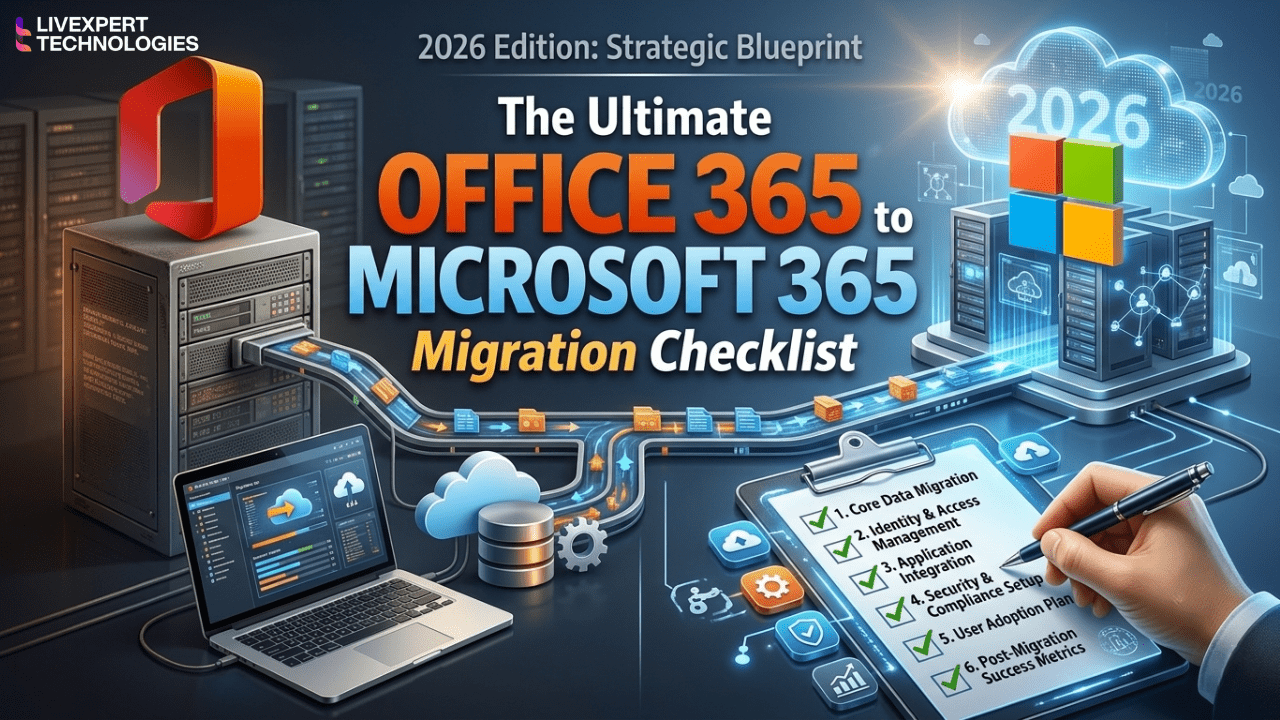
The Ultimate Office 365 to Microsoft 365 Migration Checklist (2026)
Deciding to migrate to Microsoft 365 is one of the highest-ROI IT decisions a company can make. However, the actual process of moving years of sensitive corporate emails, complex file server hierarchies, and intricate permissions to the cloud is a high-wire act.
Whether you are migrating from an on-premise Exchange server, executing a Google Workspace transition, or performing a tenant-to-tenant office 365 to microsoft 365 migration following a company merger, the risks are identical: dropped emails, corrupted data, and massive employee downtime.
To execute this flawlessly, you cannot wing it. You need a rigorous, battle-tested plan.
As a premier microsoft migration company, Livexpert has moved thousands of users to the cloud with zero operational downtime. In this guide, we are opening our internal playbook to give you the definitive 2026 office 365 migration checklist.
What is an Office 365 Migration?
What are the steps for an Office 365 migration?
A successful Office 365 to Microsoft 365 migration involves five core phases:
- Pre-migration auditing of current data and network bandwidth.
- Provisioning the new Microsoft tenant and assigning licenses.
- Executing the email migration and MX record cutover.
- Migrating files to SharePoint and OneDrive.
- Post-migration security enforcement, testing, and user onboarding.
Phase 1: Pre-Migration Planning & Auditing (The Cloud Migration Checklist)
A failed migration is almost always the result of poor planning. Before you move a single file, you must audit your current digital landscape. This phase of the cloud migration checklist ensures you aren’t migrating “garbage” into your new pristine environment.
🔲 1. Inventory Your Current Environment
Identify all users: Create a master list of active employees, external contractors, and generic shared mailboxes (e.g., info@company.com, sales@company.com).
Locate all data: Where do files currently live? (Local servers, Google Drive, Dropbox, individual employee hard drives).
Audit permissions: Document who has access to sensitive HR and Finance folders.
🔲 2. Clean Up Legacy Data
Delete inactive accounts: Do not pay for licenses for ex-employees. Convert their old mailboxes into free “Shared Mailboxes” in Microsoft 365 to retain their history without paying a monthly fee.
Purge redundant files: Archiving old, irrelevant data before migrating saves massive amounts of time and cloud storage costs.
🔲 3. Assess Network Bandwidth
Uploading terabytes of data to the cloud will strain your office internet. Ensure your bandwidth can handle the initial upload phase without crashing your daily operations.
Phase 2: Preparing the Microsoft 365 Environment
Once you know what you are migrating, you must prepare the destination. As we noted in our comprehensive Microsoft 365 vs Office 365 pillar guide, modern Microsoft 365 requires strict architectural setup.
🔲 4. Provision the Tenant & Add Domains
Set up your Microsoft 365 tenant.
Verify your company domain names (e.g., @yourcompany.com) within the Microsoft Admin Center. Do not change the DNS MX records yet, or you will break your current email flow.
🔲 5. Purchase & Assign Licenses
Review our Microsoft 365 Business Plans Comparison to ensure you buy the right mix of Basic, Standard, and Premium licenses.
Assign licenses to your master list of users.
🔲 6. Configure Microsoft Entra ID (Identity Management)
Set up Microsoft Entra ID (formerly Azure Active Directory).
If you have an on-premise server, configure Entra Connect to sync local passwords with the cloud.
Phase 3: Email Migration to Microsoft 365 (The Critical Path)
For most businesses, email migration to Microsoft 365 is the most anxiety-inducing step. A dropped client email during the transition can cost thousands of dollars.
🔲 7. Choose the Right Migration Method
Your migration method depends entirely on your starting point:
IMAP Migration: Best for moving from simple webmail providers (GoDaddy, Rackspace). Moves emails, but not calendars or contacts.
Cutover Migration: Best for small businesses (under 150 users) moving from an on-premise Exchange server. All data is moved at once over a weekend.
Hybrid Migration: Best for large enterprises that need to move users in batches over several weeks while keeping both the old server and the cloud connected.
Third-Party Tools: When migrating from Google Workspace, we highly recommend using enterprise API tools (like BitTitan) to move emails, calendars, and contacts seamlessly.
🔲 8. Perform the Initial Data Sync
Run a background sync of all emails from the old server to Microsoft 365. Users continue working in their old email uninterrupted while 99% of the historical data copies over invisibly.
🔲 9. The MX Record Cutover (The “Flip”)
Schedule this for a Friday night.
Update your domain’s DNS MX records to point to Microsoft 365. This tells the global internet to route all new emails to your new cloud environment instead of the old server.
🔲 10. The Final Delta Sync
Run one last sync on Saturday morning to catch any stray emails that arrived right before the MX record flip.
Phase 4: File & Document Migration (SharePoint & OneDrive)
Files are trickier than emails. Moving a complex folder hierarchy to the cloud requires careful mapping to ensure Microsoft Copilot AI and your employees can actually find things later.
🔲 11. Map Personal vs. Company Files
OneDrive: Route all personal user files (e.g., “John’s Drafts”) to their individual 1TB OneDrive accounts.
SharePoint: Route company-wide shared folders (e.g., “Marketing Assets,” “HR Policies”) into dedicated SharePoint Document Libraries.
🔲 12. Fix File Path & Character Limit Errors
Microsoft 365 has a 400-character limit for file paths. If you have deeply nested folders (e.g., C:\Company\2026\Sales\Clients\NorthAmerica…), the migration will fail. You must flatten the folder structure before uploading.
Remove illegal characters (like ~ ” # % & * : < > ? / \ { | }) from file names.
🔲 13. Execute File Transfer & Permission Mapping
Use the Microsoft SharePoint Migration Tool (SPMT) to upload the files.
Re-apply the security permissions (ensuring the Sales team cannot accidentally open the Finance team’s payroll folder).
Phase 5: Post-Migration Security & Onboarding
You have successfully moved the data. Now, you must secure it. To understand the depth of these features, read our Microsoft 365 Implementation Guide.
🔲 14. Enforce Zero-Trust Security Policies
Turn on Multi-Factor Authentication (MFA) for 100% of users.
Activate Microsoft Defender for Business to protect endpoints from ransomware.
Configure Microsoft Intune to enforce laptop encryption and mobile device management policies.
🔲 15. User Onboarding & Change Management
Provide users with their new temporary passwords and instructions on how to set up MFA on their smartphones.
Host a brief training session on how to use Microsoft Teams, how to share links securely via OneDrive (instead of attaching files to emails), and how to utilize Microsoft Copilot.
Why You Need Professional Office 365 Migration Services
If reading this office 365 migration checklist made you realize how complex this process is, you are not alone.
Many internal IT teams attempt to DIY their cloud migration to save money. Unfortunately, they frequently encounter broken file paths, lost calendar invites, DNS propagation failures that disable company email for 48 hours, and misconfigured SharePoint permissions that expose confidential data to the entire company.
The Livexpert Guarantee: Zero-Downtime Migrations
Your company’s data is its lifeblood. Do not leave its transition to chance. By partnering with Livexpert, a certified microsoft migration company, you get:
White-Glove Execution: We handle the entire checklist, from pre-auditing to post-migration support.
Zero Disruption: We sync data in the background and perform cutovers on weekends. Your team leaves work Friday on the old system and logs in Monday to the new one.
Enterprise Security Built-In: We don’t just move your data; we secure it using Microsoft’s most advanced Zero-Trust architecture.
FAQ
The timeline depends heavily on the volume of data and network bandwidth. A small business (under 50 users) can typically be migrated over a single weekend. Mid-to-large enterprises with terabytes of legacy server data may require a staged, multi-week hybrid migration.
If executed properly by a professional microsoft migration company, you will not lose a single email. Background delta syncs ensure that every historical email is copied, and strategic DNS cutovers guarantee that no incoming live emails are dropped during the transition.
While Microsoft provides free basic tools like the SharePoint Migration Tool, complex migrations (such as moving from Google Workspace or highly customized on-premise Exchange servers) heavily benefit from enterprise third-party tools like BitTitan or ShareGate to ensure exact permission mapping and calendar syncing.
A tenant-to-tenant migration occurs when two companies merge, or a company splits, requiring data to be moved from one existing Microsoft 365 cloud environment into a completely separate Microsoft 365 cloud environment.
Stop Planning, Start Executing
You now have the roadmap. The next step is execution.
Attempting to navigate DNS records, Exchange servers, and SharePoint permissions through trial and error is a massive liability. If you want a flawless, secure, and stress-free transition to the cloud, you need experts in your corner.
As a leading provider of office 365 migration services, Livexpert is ready to architect your company’s future.
Discover Microsoft 365 Security Features Explained to see how we protect your data post-migration.
Contact Livexpert today for a free, customized Migration Assessment and Quote and let our engineers handle the heavy lifting.